Professional price tags from the printer you already own.
Taglea turns your product list into clean, consistent price tags, sale signs and shelf labels. Print them on Avery label sheets or cardstock with any color laser or inkjet printer. No design skills or special hardware needed.
No credit card required. The demo opens a sample store you can print from right away.
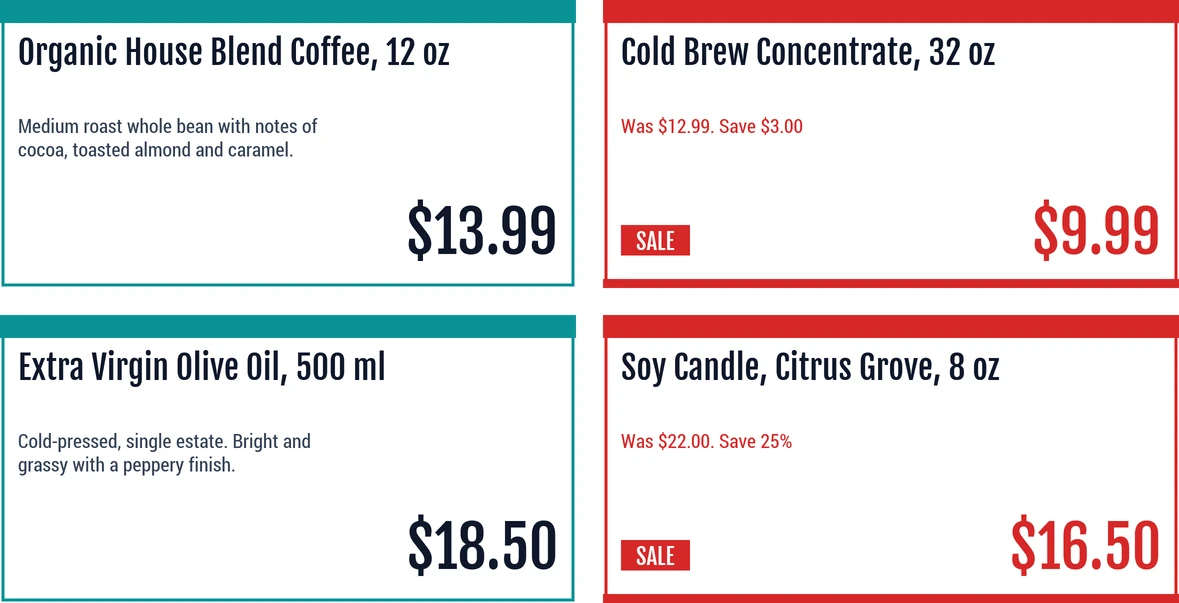
From product list to printed tags in three steps
Add your products
Import a CSV or Excel export from your POS or spreadsheet, or add products one at a time. Categories like "Coffee" or "Pet Food" are set up for you.
Pick a tag style
Choose a template for each category: shelf labels, sale tags, bakery cards, plant stakes and more. Every tag in that category matches.
Print and display
Queue the tags you need, choose your Avery sheet or cardstock, and print. Taglea lines everything up for you.
Everything a small shop needs to keep shelves labeled
Consistent tags make your store look organized and make prices easy to find, without spending your evenings in a design program.
Sale tags with was/now pricing
Put specials in a sale category and they print in bold red with the old price, so shoppers spot the deal.
A tag style for every category
Set the layout once per category. Fonts, colors and positions apply to every product in it.
Avery sheets or cardstock
Print on pre-cut Avery labels, or on heavy Letter cardstock with light cut guides for a trimmer or scissors.
Reuse half-used sheets
Already peeled a few labels? Tell Taglea where to start and it skips the empty spots.
Import from your POS
Upload a CSV or Excel export from Square, Clover, Shopify, Lightspeed, QuickBooks POS or a spreadsheet. Columns are matched for you, and re-importing updates prices instead of making duplicates.
Barcodes on your tags
Add a UPC, EAN or Code 128 barcode from each product's code, with the size and spacing scanners need. Turn it on per category and drag it where you want it.
Never throw away a half-used label sheet
Label sheets aren't cheap. If you've already used the first few labels on a sheet, put it back in the printer and pick your starting spot. Taglea fills the empty labels and leaves the used ones alone.
- Works with Avery 5160, 5162, 5163, 5164 and 94200 sheets
- Print just one tag when a single price changes
- Light cut guides when you print on plain cardstock
Tags for every corner of the store
Shelf edges, peg hooks, bakery cases, plant benches and more.
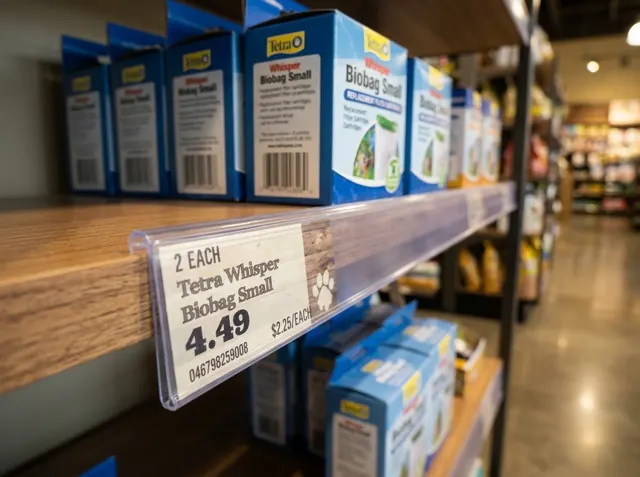
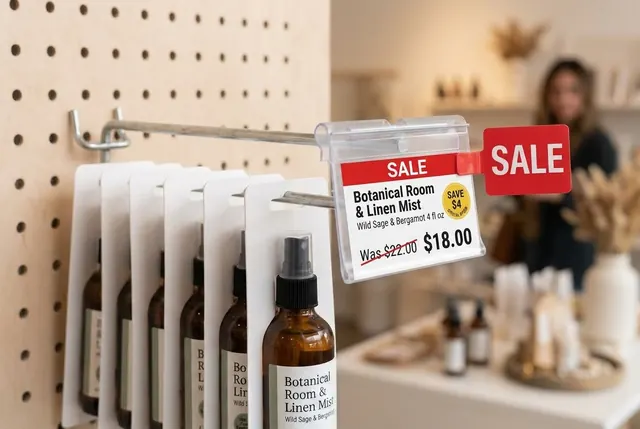
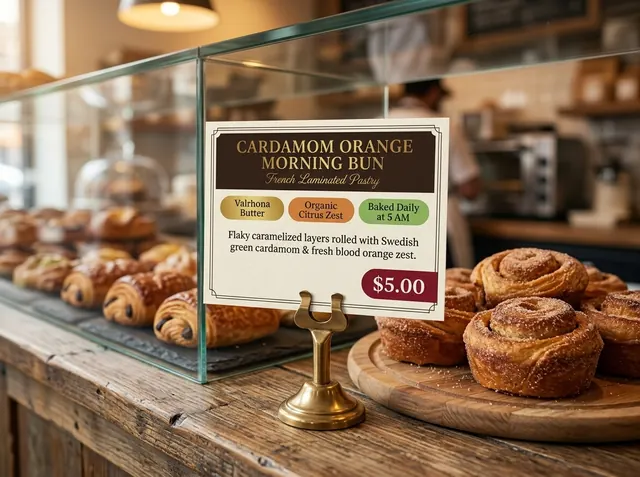
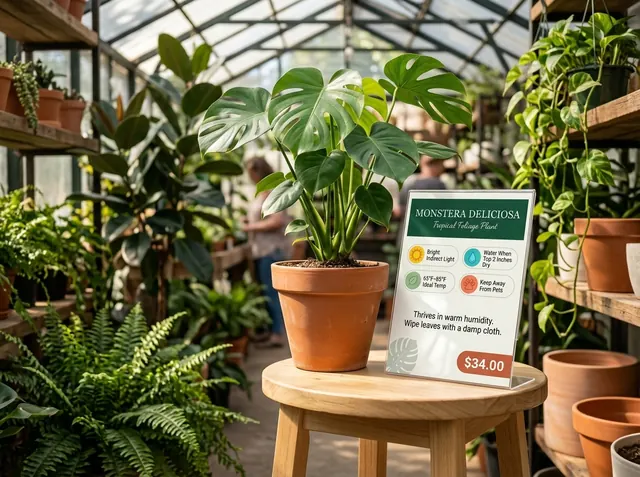
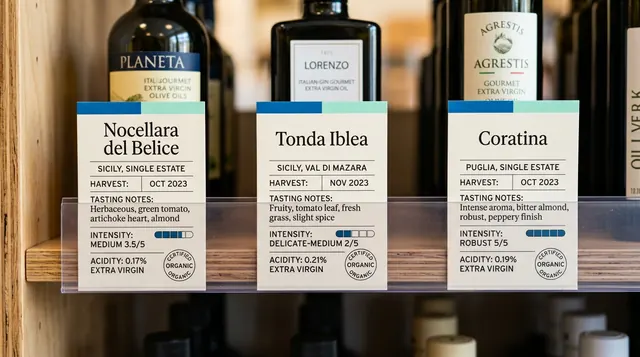
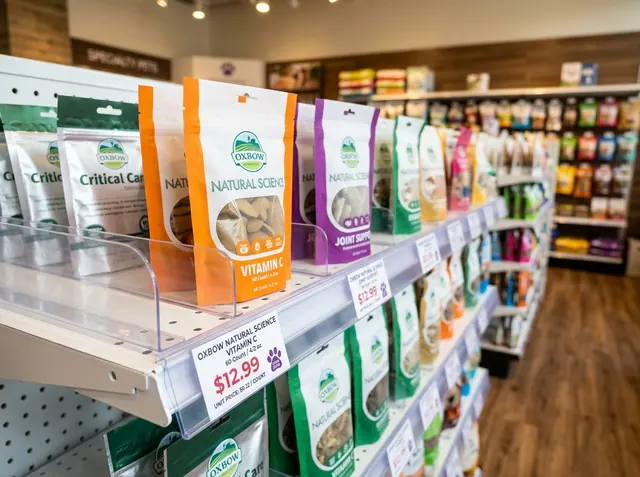
Example setups for inspiration. See more examples
Simple plans based on how many products you carry
Every plan starts with a 14-day free trial. No credit card required.
Starter
For cafes, bakeries and boutiques with a focused catalog.
- Up to 300 products
- 1 store location
- All tag styles and sale tags
- CSV & Excel product import
- Barcodes on tags
- Avery sheets and cardstock
- Email support
Growth
For full retail stores with a larger product range.
- Up to 2,500 products
- 1 store location
- All tag styles and sale tags
- CSV & Excel import and barcodes
- Custom tag designs per category
- Priority email support
Pro Multi-Store
For owners running more than one shop.
- Unlimited products
- Up to 3 store locations
- Everything in Growth
- Help setting up your catalog
- Priority support
Prices in USD. Cancel anytime. See our refund & cancellation policy.
Questions store owners ask
What printer do I need?
Any regular color laser or inkjet printer that takes Letter (8.5" × 11") paper. Taglea is designed for full-color tags on label sheets and cardstock, so you don't need a special label printer.
Does it work with thermal label printers like Zebra or Dymo?
Taglea is built for color sheet printing instead. Thermal labels are black-and-white and tend to fade under store lighting or in refrigerated cases, so we focus on sheets and cardstock.
Which label sheets can I use?
Avery 5160, 5162, 5163, 5164 and 94200 (and their 8160-series equivalents), or plain Letter cardstock. On cardstock, Taglea prints light guides so you can trim the tags with a paper cutter or scissors.
Can I use a sheet I've already printed part of?
Yes. Choose the label to start from and Taglea skips the spots you've already used.
How do I get my products in?
Export your item list from your POS or spreadsheet as a CSV or Excel (.xlsx) file and import it. Taglea recognizes the usual column names from Square, Clover, Shopify, Lightspeed and QuickBooks POS, shows you a preview, and adds or updates your products. Importing the same file again later updates prices instead of creating duplicates. You can also add products one at a time.
Can my tags include barcodes?
Yes. Taglea prints a UPC-A or EAN barcode when a product has a valid UPC/EAN, and a Code 128 barcode for other SKUs. Barcodes are drawn as sharp vector graphics, with the white margins and minimum bar width scanners need. Print a test sheet and try it with your own scanner before relabeling the whole store.
What happens when my free trial ends?
We'll contact you to choose a plan. You're never charged automatically during the trial, and no credit card is needed to start.
Can I cancel anytime?
Yes. Cancel by emailing support and your plan stays active until the end of the period you've paid for. Annual plans can be refunded in full within 30 days. Details are in our refund policy.
Do I need to install anything?
No. Taglea runs in Chrome, Edge, Safari or Firefox on Windows, Mac and Chromebook.
Give your shelves a cleaner look this week
Start free for 14 days, or open the demo store and print a sample sheet now.